Turn it on for a project
Nothing happens anywhere until an administrator enrols a project. That is deliberate, and it takes about a minute.
This page starts after the app is installed. If it is not on your site yet, that is a Jira administrator's one-off step and it switches nothing on by itself.
1. Turn it on for this project
In the project you want scheduled issues in, open Project settings → Apps → Recurring work items. The page opens with Status: Off and a single button, Turn on for this project.

The page states the consequence in both directions, and it is worth reading once:
While this is off, nothing from this app appears anywhere in the project and no rules run. Turning it back on keeps the rules you already had.
So turning a project off is a safe pause, not a delete. Rules, their settings and their run history all survive, and switching back on resumes them.
Only a project administrator sees this page's controls. Anyone else who opens it is told so, and nothing on it is editable for them. Choosing who may schedule is itself a project administration decision.
Why there is no app tab in the project until then
The project page — where the rules actually live — is hidden until the project is enrolled. It is not a broken install and it is not a permission problem: the tab genuinely does not exist in a project that has never been turned on. Enrol the project and Recurring work items appears in the project menu.
2. Choose who may schedule
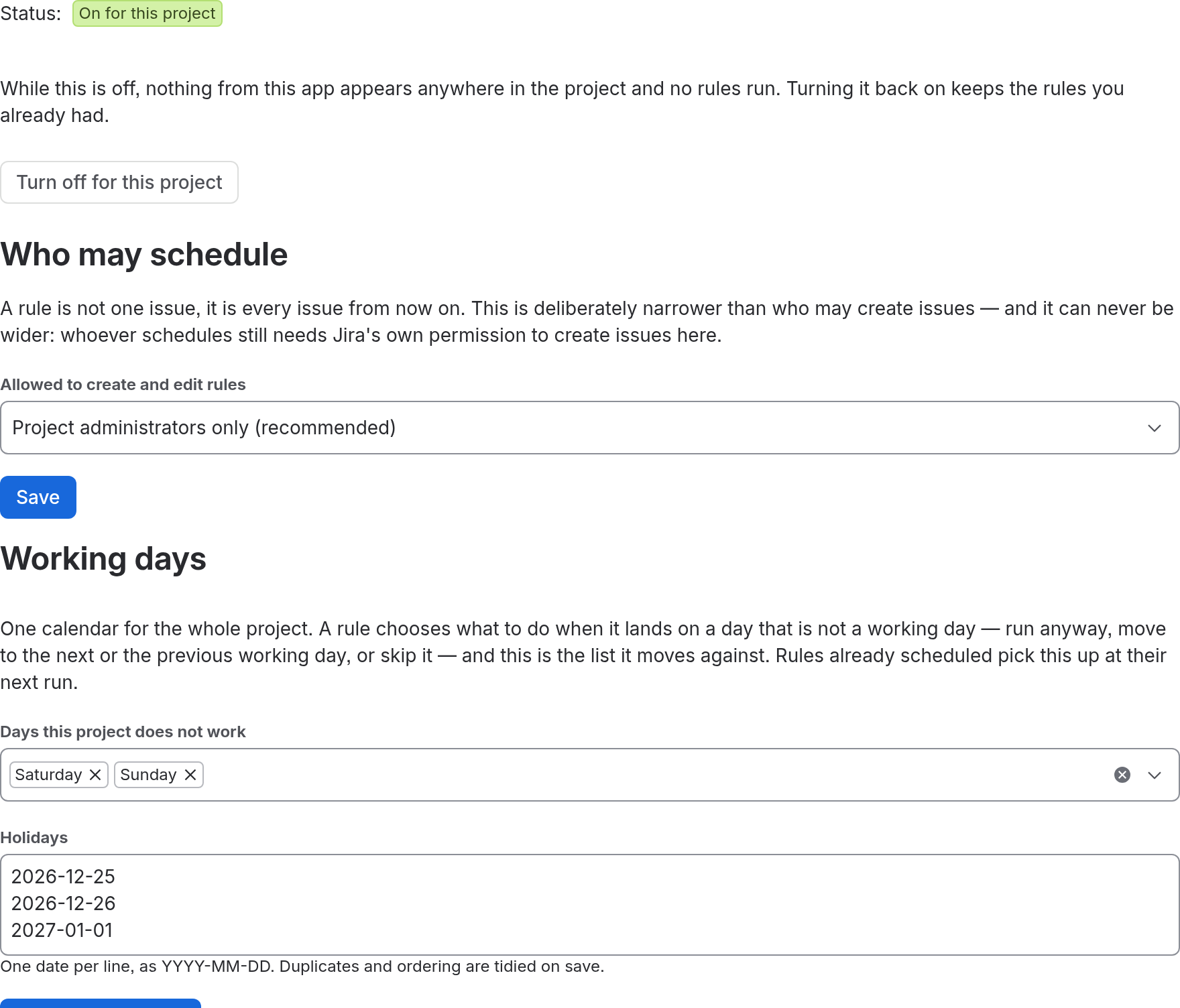
Once the project is on, the settings page shows Who may schedule. The app puts it this way, and the reasoning matters more than the setting:
A rule is not one issue, it is every issue from now on. This is deliberately narrower than who may create issues — and it can never be wider: whoever schedules still needs Jira's own permission to create issues here.
Read that last clause as a guarantee. This setting can only ever narrow the set of people Jira already lets create issues in the project. Choosing Anyone who can create issues does not grant anything; it just stops narrowing.
The five answers, in the order the dropdown offers them:
The default is Project administrators only (recommended), which is what a project gets if nobody ever opens this setting.
Checked when you save
Every role, group and person chosen is checked against Jira when you press Save. If one no longer exists — a role removed from the project, a group renamed or deleted — nothing is saved, and the page names the value that was refused under the list it came from. A list mode with nobody chosen is refused too: pick Project administrators only if that is what you mean.
Once everything chosen checks out, the page confirms with Who may schedule in this project has been updated.
3. Set the working week
One calendar for the whole project, under Working days on the same page. A rule chooses what to do when it lands on a non-working day; this is the list it moves against. Rules already scheduled pick up a change at their next run.
There are two fields:
- Days this project does not work — a multi-select of weekdays.
- Holidays — a text box, one date per line, as YYYY-MM-DD. Duplicates and ordering are tidied on save, and a line that is not a real calendar date is reported rather than silently dropped.
A project that has never opened this setting gets: Working days are every day except Saturday and Sunday, and no holidays are listed.
Two limits apply. A project may hold at most 400 holidays — several years of public holidays, which is more than any list needs. And a rule that moves off a non-working day searches at most 14 days for one; if a fortnight holds no working day at all, the run happens on the day it fell on rather than disappearing, and the history says so.
At least one day of the week has to be a working day. Marking all seven as non-working is refused on save — with every day excluded, no rule that rolls or skips could ever run.
Press Save working days. Then go to writing your first rule.