Writing and running rules
Open Recurring work items in the project menu. The sections below follow the editor's own headings, so nothing here has to be translated back to the screen in front of you.
The rules table
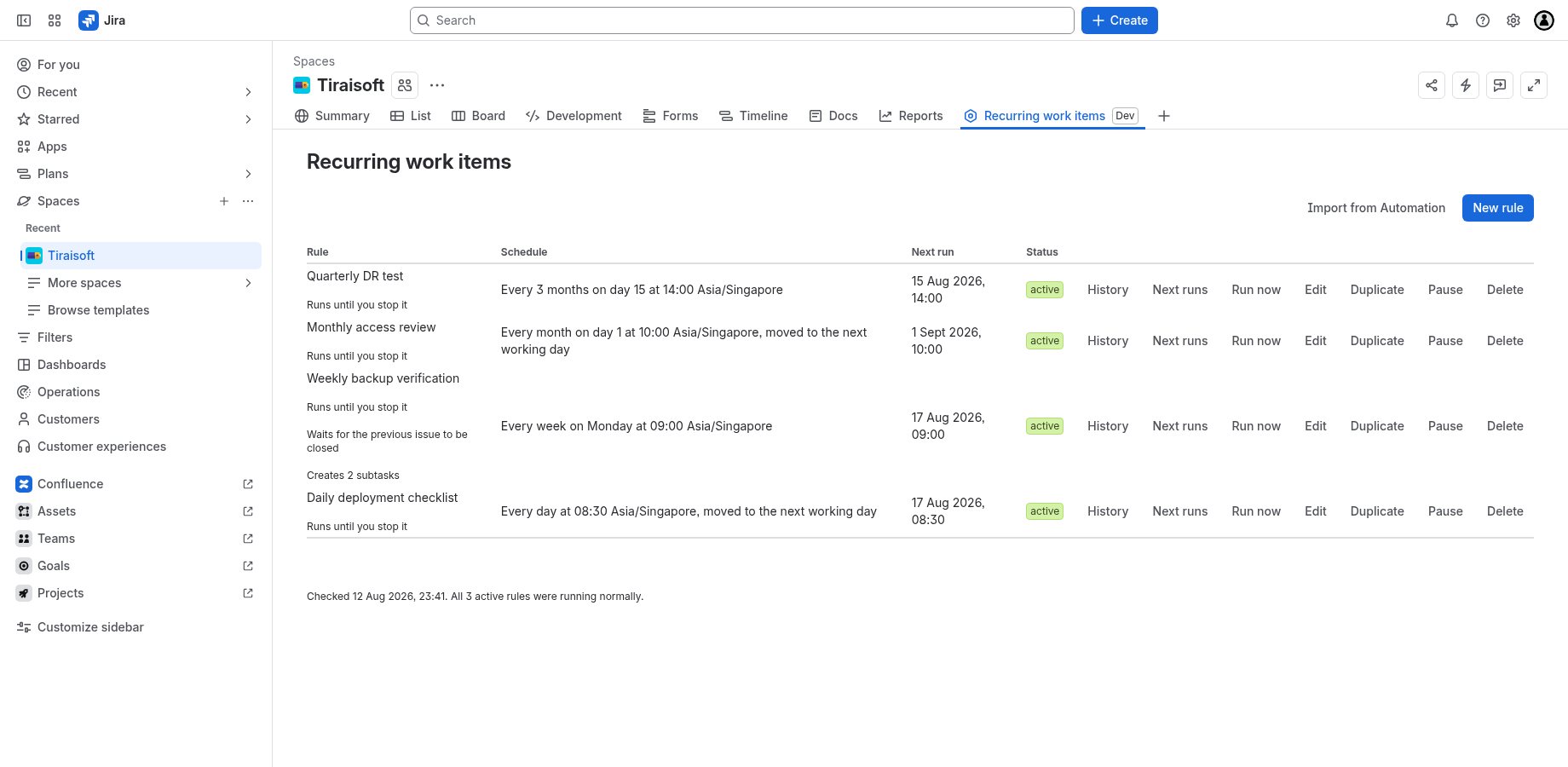
Four columns: Rule, Schedule, Next run and Status. Status is one
of four, with a second failing lozenge beside it when the daily health check has
seen this rule fail repeatedly:
active— running on its schedule. The Next run column says when it next fires.paused— switched off by a person, and only a person switches it back on. Resume works out the next run from the moment you press it, so a rule paused for a month does not wake up owing a month of issues.blocked— it has stopped creating issues, and waiting will not fix it. Open History to see which failure did it, fix that, then Resume the rule; resuming also clears the failure count.completed— its end condition was reached. Nothing is wrong; there is simply nothing left to do. Edit the rule to extend the end and it runs again, from now — see when it stops.
Only three failures block a rule, and no others:
PROJECT_ARCHIVED,
PROJECT_NOT_FOUND and
ISSUE_TYPE_NOT_FOUND — the project was archived, the project is
gone, or the issue type the rule creates is gone. Each has a row in the
failure codes saying what to change. Every other
failure is retried and leaves the rule active, with the failing
lozenge if it keeps happening.
The failing lozenge is not the only way you hear about it: the first day the
daily check reports a rule as failing, and the first day it reports it working again, it also
sends a Jira notification — hung on the last issue that rule created, addressed to the
rule's owner, or to that issue's assignee and reporter when the rule records no owner. Nothing
is sent on the days between. See
the check also notifies somebody for who gets
it and how to stop receiving it.
Each row offers:
- History — every past run and the next few. See reading the run history.
- Next runs — the upcoming occurrences on their own.
- Run now — create the issue immediately. Offered only on an active rule; see Run now.
- Edit, Duplicate, Pause / Resume, Delete.
History and Next runs are available to anyone who can see the project. The rest appear only if you may schedule here; if you cannot, the page says so rather than hiding the table.
The table shows 50 rules at a time, with Load more rules beneath it.
Pausing is not deleting, and resuming does not owe you a backlog. A rule paused for a month recomputes its next run from the moment you resume it — it does not wake up owing four weeks of issues.
Rule name, summary and issue type
Rule name is how you find the rule; it is also what the automatic label on every created issue is named after, so every issue a rule has ever made stays findable.
Issue summary is the title of the issue itself. Left empty, the rule name is used — which is fine until you have twelve identical rows in a backlog, so this is the field most worth putting a token in.
Issue type is read from the project. If you pick a subtask type here, the rule must be given a parent issue under What the issue says, and the Subtasks section disappears — a subtask cannot have subtasks of its own.
What the issue says
- Description — the issue body. The same tokens work here, and a blank line starts a new paragraph.
- Reporter — defaults to whoever created the rule. Worth leaving set: with no reporter the issues come from the app itself, which reads as spam in a backlog.
- Assignee — optional. Left empty, the issue is unassigned.
- Priority — offers The project default as an explicit choice, so "I did not set one" and "I chose Medium" stay distinguishable.
- Parent issue — a key such as
KAN-12. Required when the issue type is a subtask, optional otherwise. - Labels — separated by commas or spaces. Every issue also gets a label naming this rule, whether or not you add any of your own.
- Other fields — see custom fields.
Due date
A due date is stored as an expression, never as a fixed date — a literal date would put the same due date on every issue the rule made for years. The dropdown writes the expression for you:
If the rule moves off a non-working day, the due date moves with it.
When it repeats
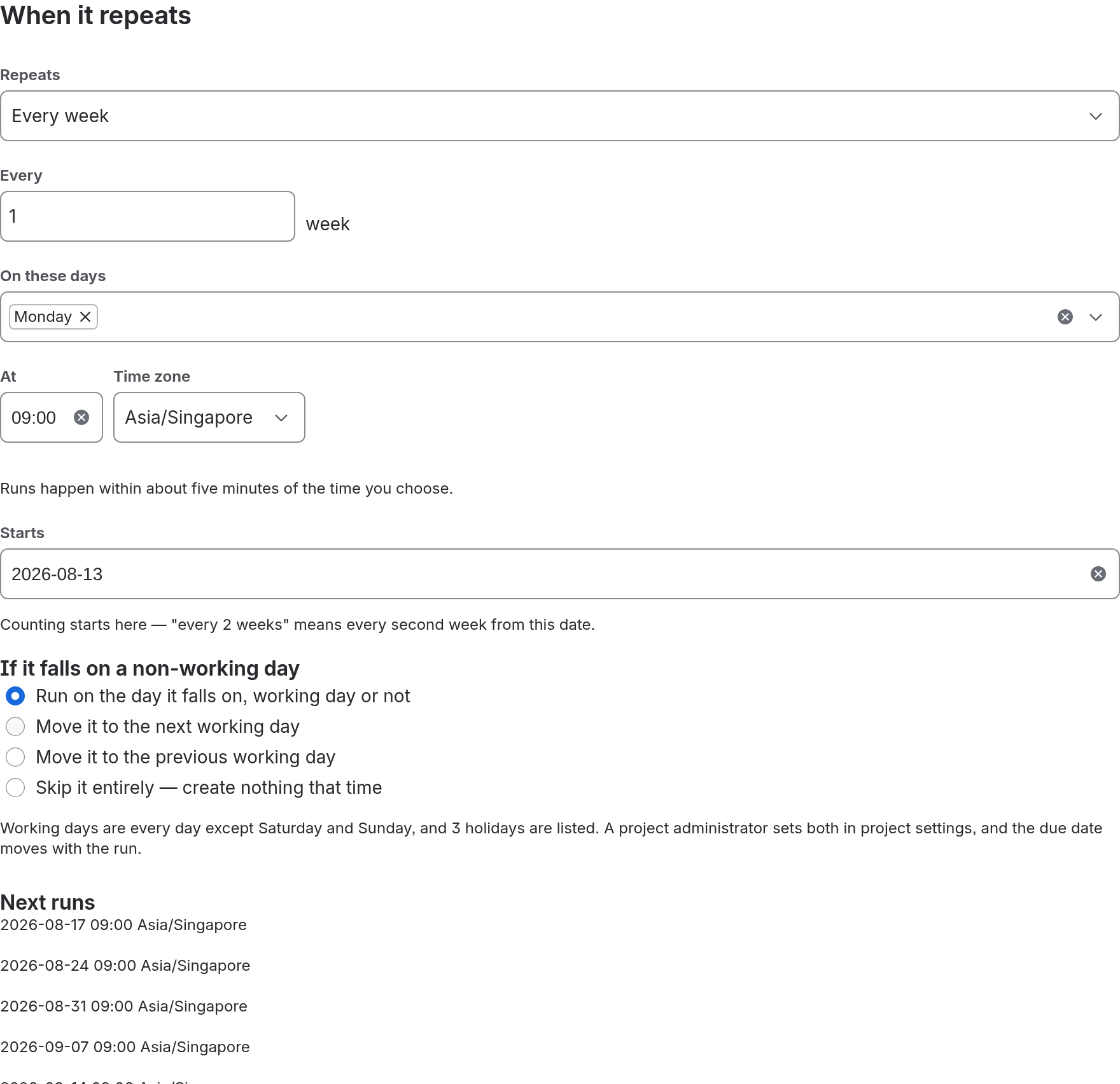
Four patterns:
Every N sets the interval, from 1 to 366, and counts in the pattern's own unit: days, weeks or months.
The ordinals available to Every month, on a weekday are:
Months without the day you chose
Choosing a day above 28 raises a question February will ask every year, so the editor asks it straight away — In months without that day:
Time, time zone and start date
At is a wall-clock time, and Time zone is a real IANA zone — so a rule set for 09:00 Europe/London stays at 09:00 through the clock change rather than drifting to 10:00. The zone field is searchable and accepts any zone the runtime knows, not just the ones listed.
Runs happen within about five minutes of the time you choose. The scheduler wakes every 5 minutes, so 09:00 means 09:00–09:05 and not 09:00:00. Nothing is ever missed by it, only slightly late.
Starts is where counting begins — "every 2 weeks" means every second week from this date, not from today.
If it falls on a non-working day
Which days those are is the project's setting, not this rule's; the editor prints the project's answer under the control rather than offering a second one that could disagree with it. What this rule does about them:
A rule that has never been told otherwise uses Run on the day it falls on, working day or not.
Next runs
The panel beside the schedule lists the next 5 occurrences, live, as you type. It is computed by the same code that executes the runs, so it cannot promise something the scheduler would not do — including the moves: a date shown here as moved off a weekend really will be.
When it stops
A rule that has reached its end shows completed and stops on its own. It is not
deleted, and its history stays readable. To run it again, edit its end — more runs, a later
date, or never — and save: it becomes active and runs from its next scheduled time,
keeping its count and history.
If a run is missed
A run can be missed while the app is uninstalled, unlicensed, or down. This is what happens when it comes back:
The default is Create one issue, for the most recent missed run.
If the previous issue is still open
Whether the next run creates its issue while the last one this rule created is still open.
The default is Create it anyway. A run held back this way appears in the history as skipped and names the issue that held it up. The schedule itself does not move, so the run after it is still due at its usual time.
Subtasks
Subtasks are created under each issue the rule makes, in the order you list them. They share the issue's labels, priority, reporter and due date, so those are set once, above.
Each subtask has its own summary, description, issue type and assignee. A rule may create at most 10 subtasks per run.
Two states the editor will tell you about rather than leaving you to guess: a project with no subtask issue type cannot have any (nothing can be added, and it says so), and a rule whose own issue type is a subtask has this section replaced by an explanation.
Other fields
The editor reads the project's create screen for the chosen issue type and offers what it finds — text, numbers, dates, users, and single or multiple choice. Required fields with no value are called out before you can save.
Two things worth knowing:
- Field types the editor cannot render yet are listed by name rather than hidden, so you know what is not being set.
- A field already holding a value this editor cannot show is kept exactly as it is when you save. Editing a rule never silently empties a field it does not understand.
Run now
Run now creates the issue immediately, without waiting for the schedule. The confirmation says what it is about to do before it does it:
On a rule that stops after a number of runs, the third sentence instead names the limit and how many have run so far — a manual run brings it one closer to stopping. And on a rule set to wait for the previous issue to be closed, a fourth sentence warns that if the previous issue is still open, nothing will be created; the history will say which issue.
Importing from Jira Automation
If you already schedule issues with Jira Automation, the rules can be brought across.
- In Jira, open Project settings → Automation, then the ⋯ menu → Export rules.
- On the project's Recurring work items page, choose Import from Automation and paste the whole downloaded file.
- Press Check the file. Nothing is created yet. You get a per-rule report: which will import, which will not and why, and any notes about what changed in translation.
- Press Import.
Imported rules arrive switched off. Nothing fires until you read a rule and switch it on — which is the point of importing in two steps rather than one. Check the reporter, the schedule's time zone and any translated notes first.
What does not carry over, because it has no equivalent here: JQL conditions, smart values that refer to a triggering issue (there is no triggering issue — the schedule is the trigger), and branches or actions other than creating an issue. Each is named against the rule it came from rather than dropped silently.